MAMAGIC ALBUM DESIGNERV PIX STUDIO
Support

GETTING STARTED

From purchase to
your first album.

Follow these six steps to activate Magic Album Designer and get your workspace ready.

See the activation steps

One account is assigned to one Mac.

01 YOUR EMAIL

Find your sign-in details

After your trial starts or payment is confirmed, check the email address you used at checkout. Your message contains your account email and temporary password. Keep these details private.

Can’t find it? Check Spam/Junk and confirm you used the right email address.

Magic Album Designer welcome email header
Your welcome or purchase email includes your account details.

02 OPEN THE APP

Launch Magic Album Designer

Open Magic Album Designer on the Mac you want to use. Wait while the app checks your licence and prepares the workspace.

Magic Album Designer opening screen while it checks the licence
The app checks the licence when it starts.

03 ACTIVATE

Enter your account details

When the activation screen appears, enter your account email in User ID / Email and the password from your email in Password.

Magic Album Designer activation screen with email and password fields
Use the email and password sent for your account.

04 CONFIRM

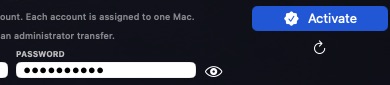
Select Activate

Check the email is correct, then click Activate. Keep the Mac online while activation completes. Your account is assigned to this Mac.

If activation fails, check for typing errors and contact support. Don’t share your password.

Password field and Activate button on the Magic Album Designer activation screen
Click Activate after entering your credentials.

05 YOUR WORKSPACE

Set up your project folders

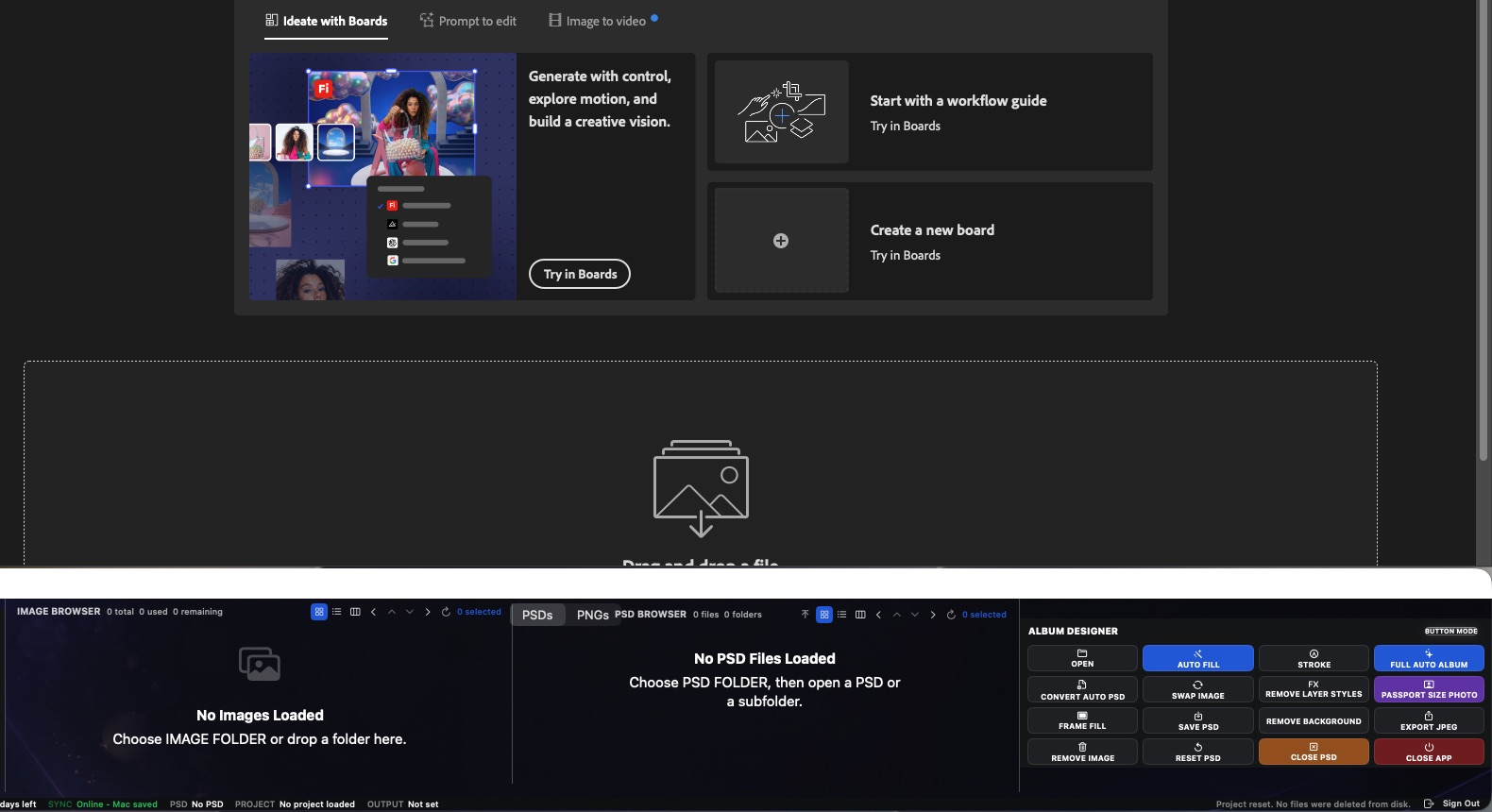
In the app, choose your source Image Folder, the PSD Folder for templates, and an Output Folder for finished work. Use the panels to browse images and PSDs, then choose an action such as Auto Fill or Frame Fill.

Magic Album Designer workspace with image and PSD browsers and action buttons
Image browser, PSD browser, and album actions in one workspace.

06 WORK WITH PHOTOSHOP

Keep both apps side by side

Open Adobe Photoshop and Magic Album Designer together. Keep Photoshop visible as your main canvas; use Magic Album Designer to browse images and templates and run supported actions. Select the document or layer you want to work on before running an action.

For the clearest view, resize the windows so both apps remain easy to reach.

Adobe Photoshop and Magic Album Designer open together on one screen
Both apps are open together. Keep Photoshop as your canvas and Magic Album Designer alongside it.

NEED A HAND?

We’re here to help.

If you’re stuck during activation, contact V PIX Studio and include the email on your licence and the step where you got stuck. Never send your password.

Contact support WhatsApp V PIX Studio